Experience Linking
The Experience Linking system allows you to connect multiple experiences together, enabling your audience to seamlessly jump from one experience to another. This is perfect for creating multi-level games, connected artworks, or building your own exhibition within Meadow. You could even create your own mini-Meadow within Meadow, the meta possibilities are endless…
The system can be used in two different ways:
-
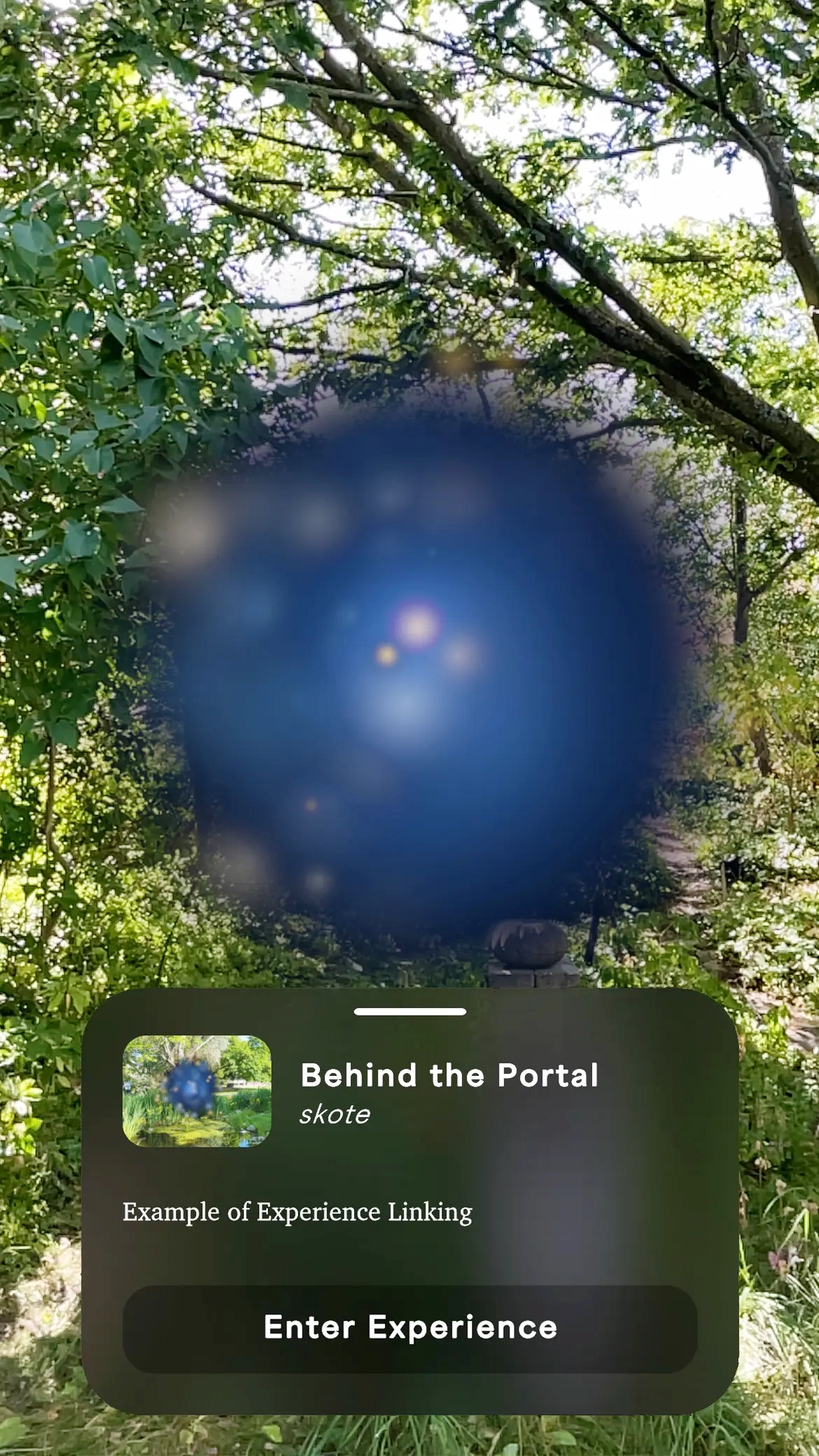
Object Triggers: Use GameObjects in your experience to trigger the transition to another experience. For example portals or doors that trigger the transition to another experience. When approaching, the user will see a small popup with the “Enter Experience” button that they can press to enter the next experience. Perfect for creating interactive installations or guided tours.
-
Visual Scripting Triggers: Use visual scripting nodes to load another experience user interactions or game events. Perfect for creating multi-leveled games. Each level is a distinct experience on Meadow that you load at specific points in your game logic.
Components Overview
The Experience Linking system consists of two main components:
XR Experience Linker
The central manager component that handles detection and triggering of experience links. This component continuously checks if the user is close to any experience link objects.
Experience Link
Individual components attached to objects that act as portals or triggers to other experiences. Contains a reference to the experience ID of the connected experience.
Setting Up Experience Linking with Object Triggers
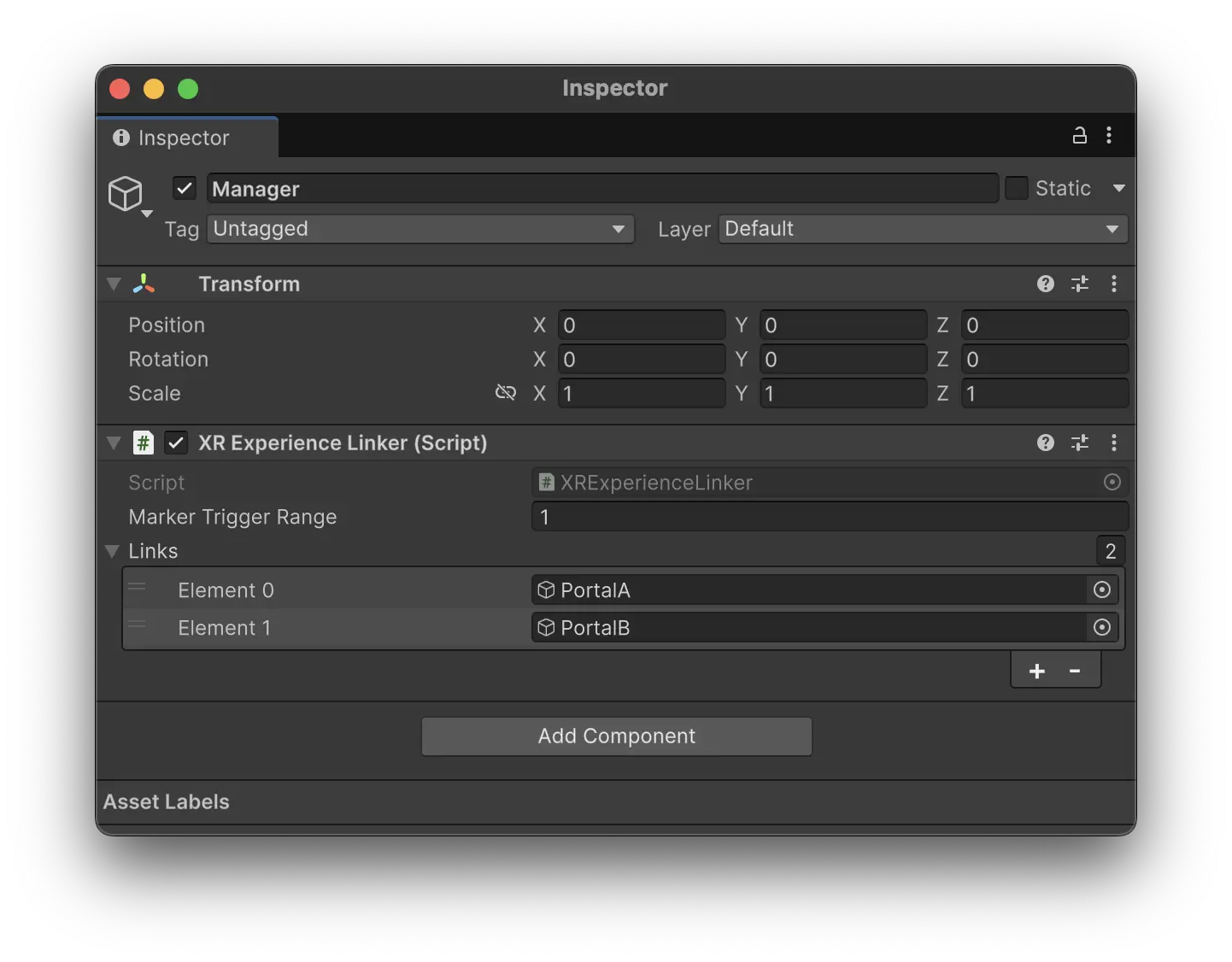
1. Add the XR Experience Linker
- Add the
XR Experience Linkercomponent to any GameObject in your experience (typically a manager object). - Configure the Marker Trigger Range - this determines how close the user needs to be to a link object before it becomes active (e.g., 10 meters).
- The component will automatically handle detection and user interaction feedback, including haptic vibration when a link becomes active.
2. Create Experience Link Objects
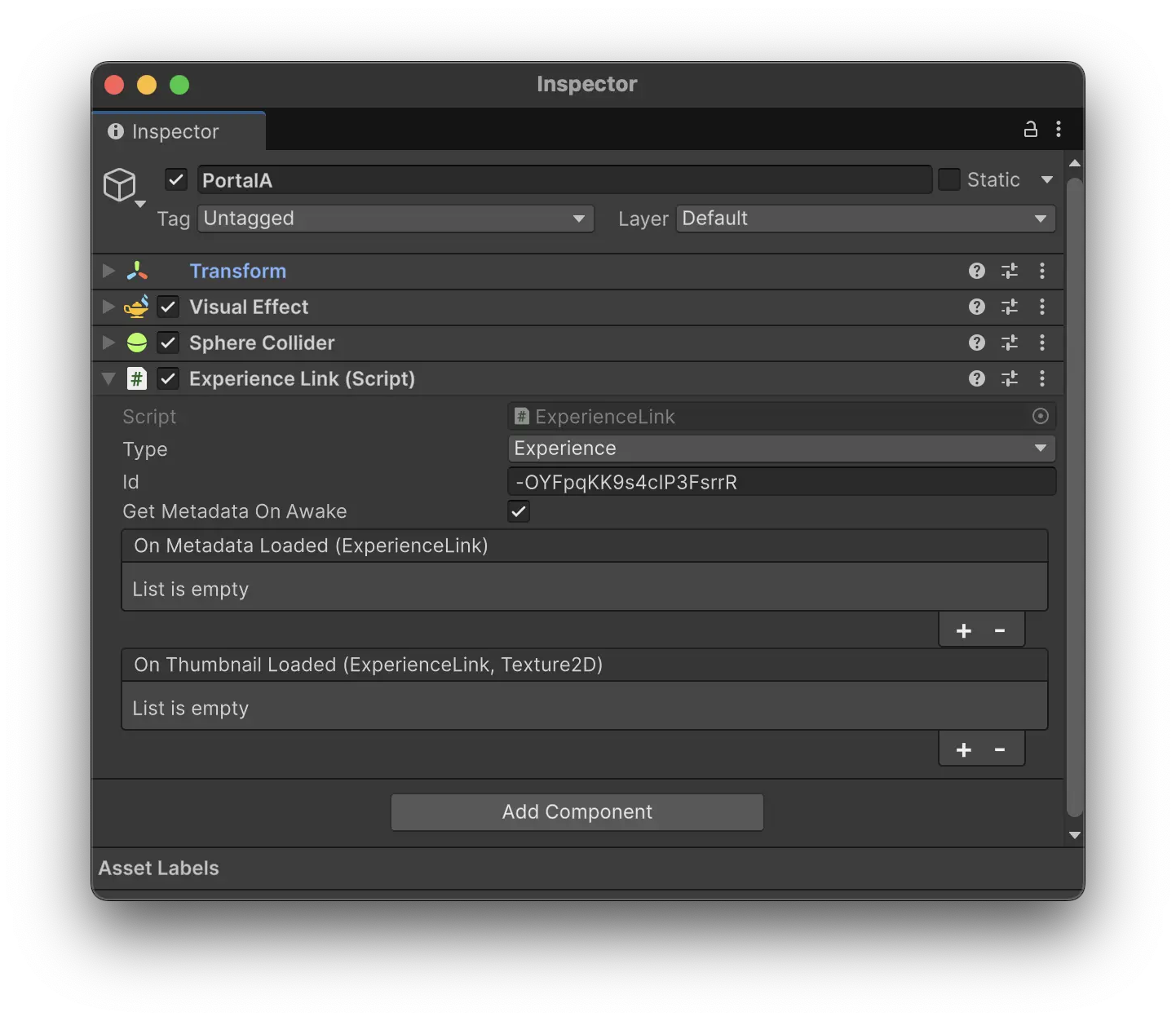
- Create or select a GameObject that will serve as your triggers (like a portal, door, or an artwork).
- Add the
Experience Linkcomponent to this GameObject. - Configure the Experience Link properties:
- Type: Set to
Experiencefor linking to other Meadow experiences. You can set it toExhibitionto link to a Meadow Exhibition (Enterprise only). - ID: Enter the unique identifier of the target experience you want to link to. You can find this in the webapp, it’s the string of characters in the url. E.g: in
https://app.meadow.space/e/-Nc8E1l1aTknOBEahAinthe ID is-Nc8E1l1aTknOBEahAin. - Get Metadata On Awake: Enable this to automatically fetch experience information when the component starts
- Type: Set to
3. Register Links with the Linker
- In the
XR Experience Linkercomponent, expand the Links list. - Add each GameObject that has an
Experience Linkcomponent to this list. - Make sure all your link objects are included in this list, or they won’t be detected.
Setting Up Experience Linking with Visual Scripting Nodes
Coming soon…
Best Practices
Portal Placement: Position experience links at natural transition points - doorways, paintings, interactive objects, or end-of-level areas.
Visual Clarity: Make it obvious to users that an object is interactive. Use glowing effects, animations, or clear visual indicators.
Common Use Cases
Multi-Level Games: Create a hub world with portals to different game levels or challenges.
Art Exhibitions: Link related artworks or create guided tours that flow from one piece to another.
Storytelling: Build branching narratives where users can choose different story paths through experience links.
Educational Content: Create learning journeys that connect related topics or progressive difficulty levels.
Virtual Museums: Build your own curated collection of experiences with thematic connections.
Troubleshooting
Links Not Detected
- Ensure all link GameObjects are added to the Links list in XR Experience Linker
- Check that link objects have colliders for raycast detection
- Verify the trigger range is appropriate for your experience. If the trigger is high up in the air a trigger range of 1m might not be sufficient.
Metadata Not Loading
- Check that the experience ID is correct and the target experience exists
- Ensure
Get Metadata On Awakeis enabled if you want automatic loading