Upload to Meadow
To upload your experience to Meadow you will use the Meadow plugin for Unity. If you are using the template project this is already installed, but if you are using your own project you will need to install Meadow Studio.
Before you get started with Meadow Studio you need to create an account on Meadow and create an experience.
Create an account on Meadow
Meadow is still in a closed beta, so your email need to be whitelisted by us before you can create an account. Contact support to get your email whitelisted.
- Go to: https://app.meadow.space/.
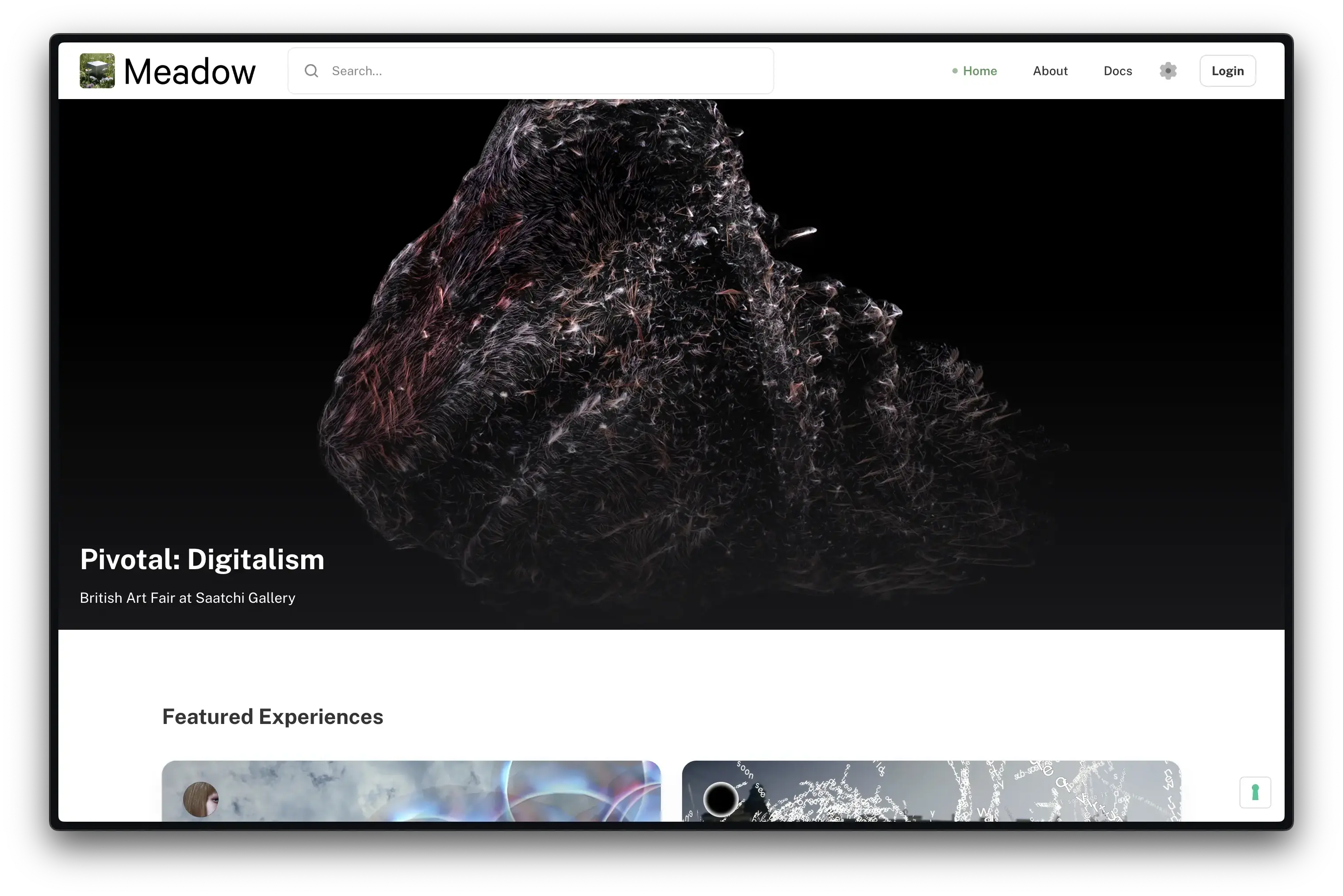
- Press “Login” at the top right corner.
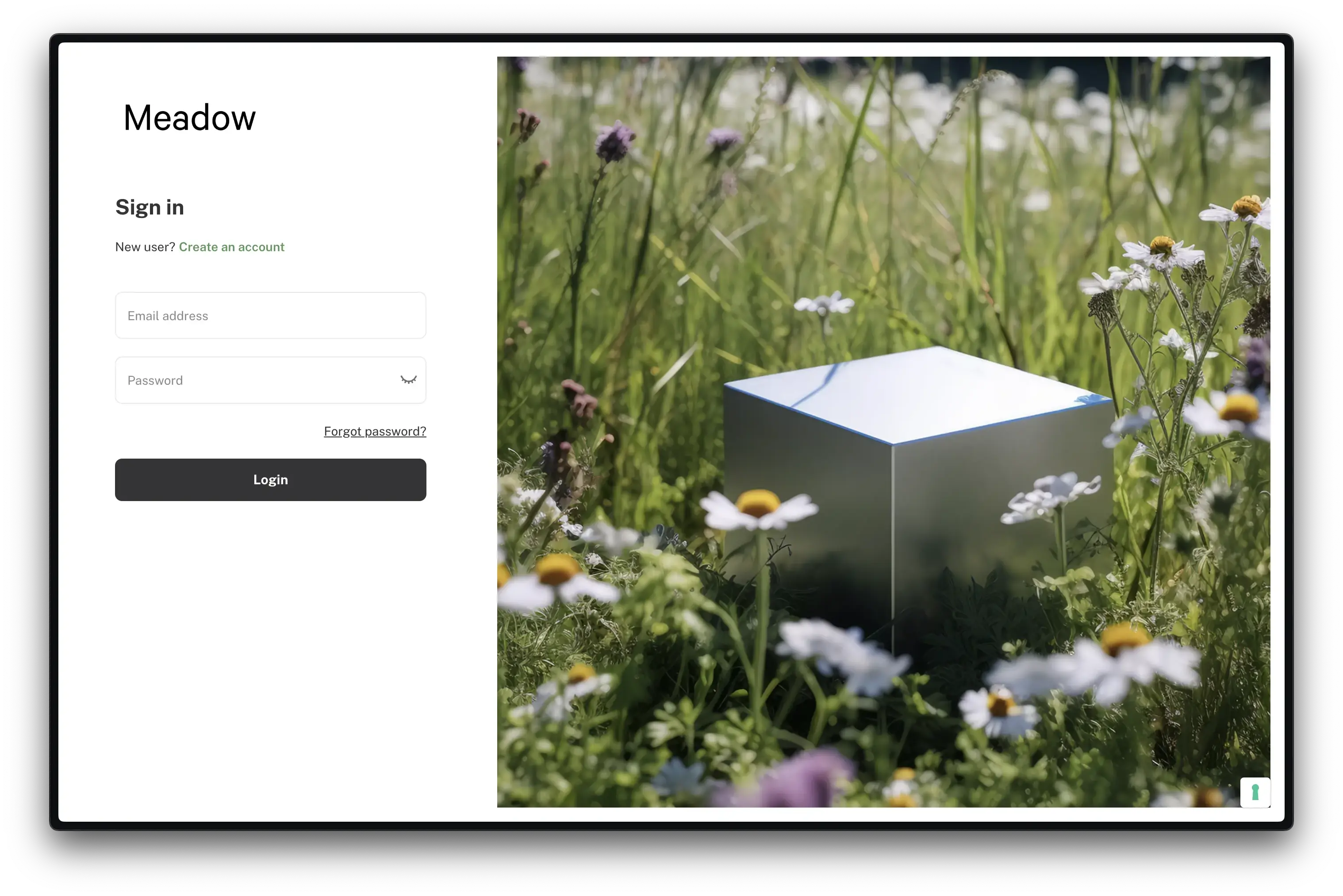
- Sign up with an email you have access to.
Important: The verification email sometimes ends up in the trash. Certain non-standard email providers and government accounts blocks our verification email, use a standard gmail or outlook address instead.
Important: Currently it’s not possible to use spaces in your name. We are working on fixing this bug, until that’s done, use a name without spaces.
Create your experience on Meadow
- Press your profile image, and then “Dashboard.”
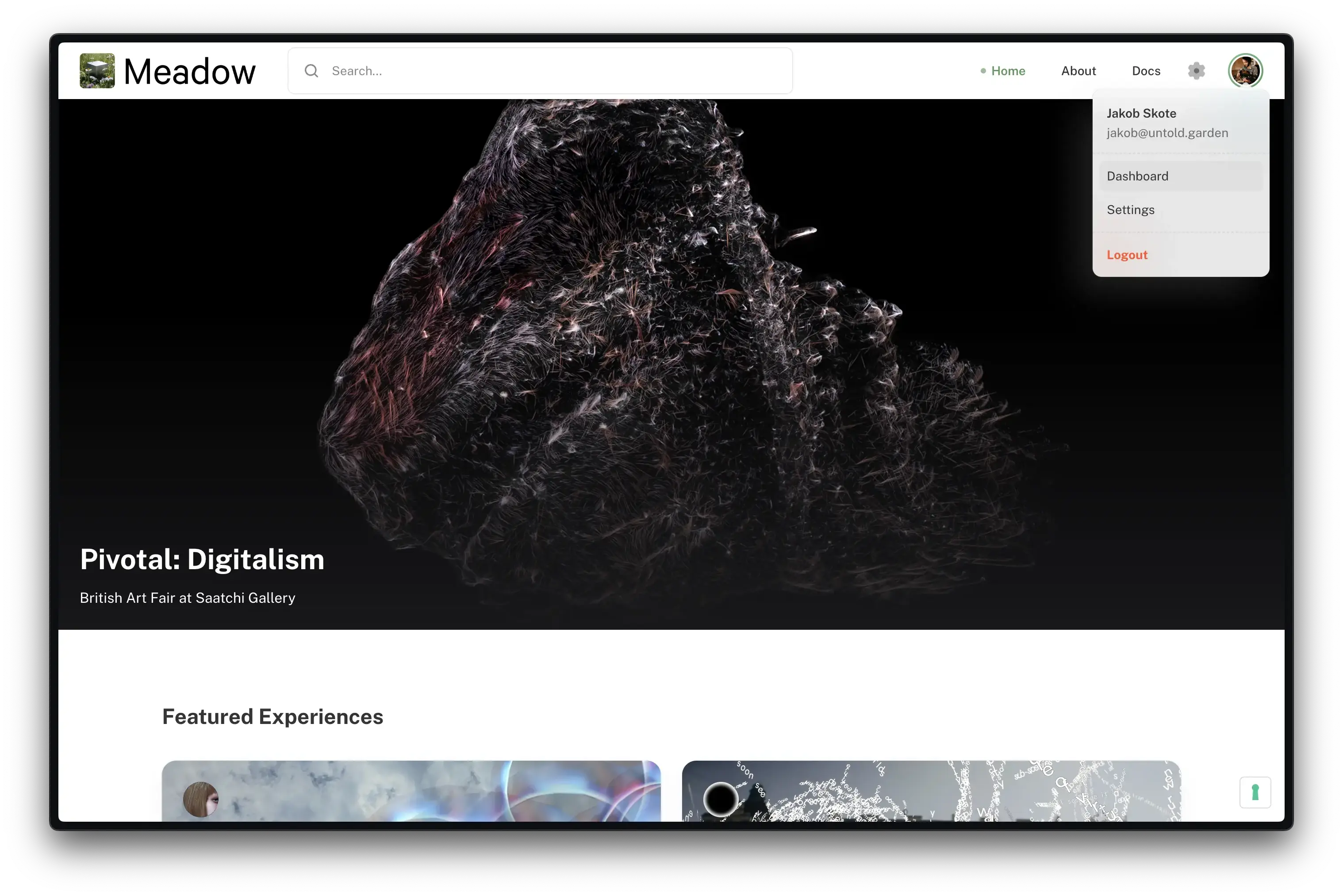
- In the dashboard, go to the “Experiences” tab. Here you can and manage all your experiences.
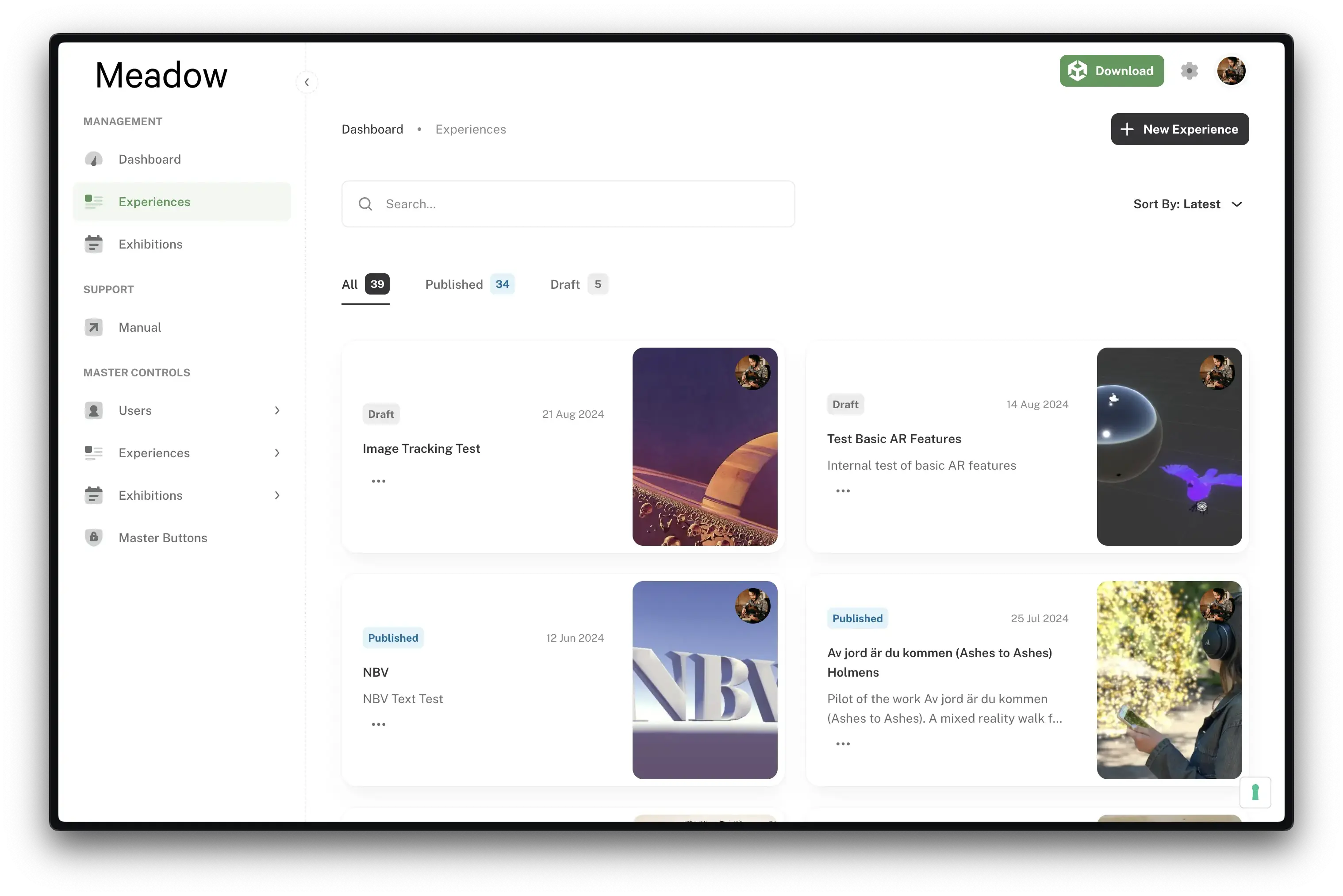
- On the top right, click “+ New Experience.”
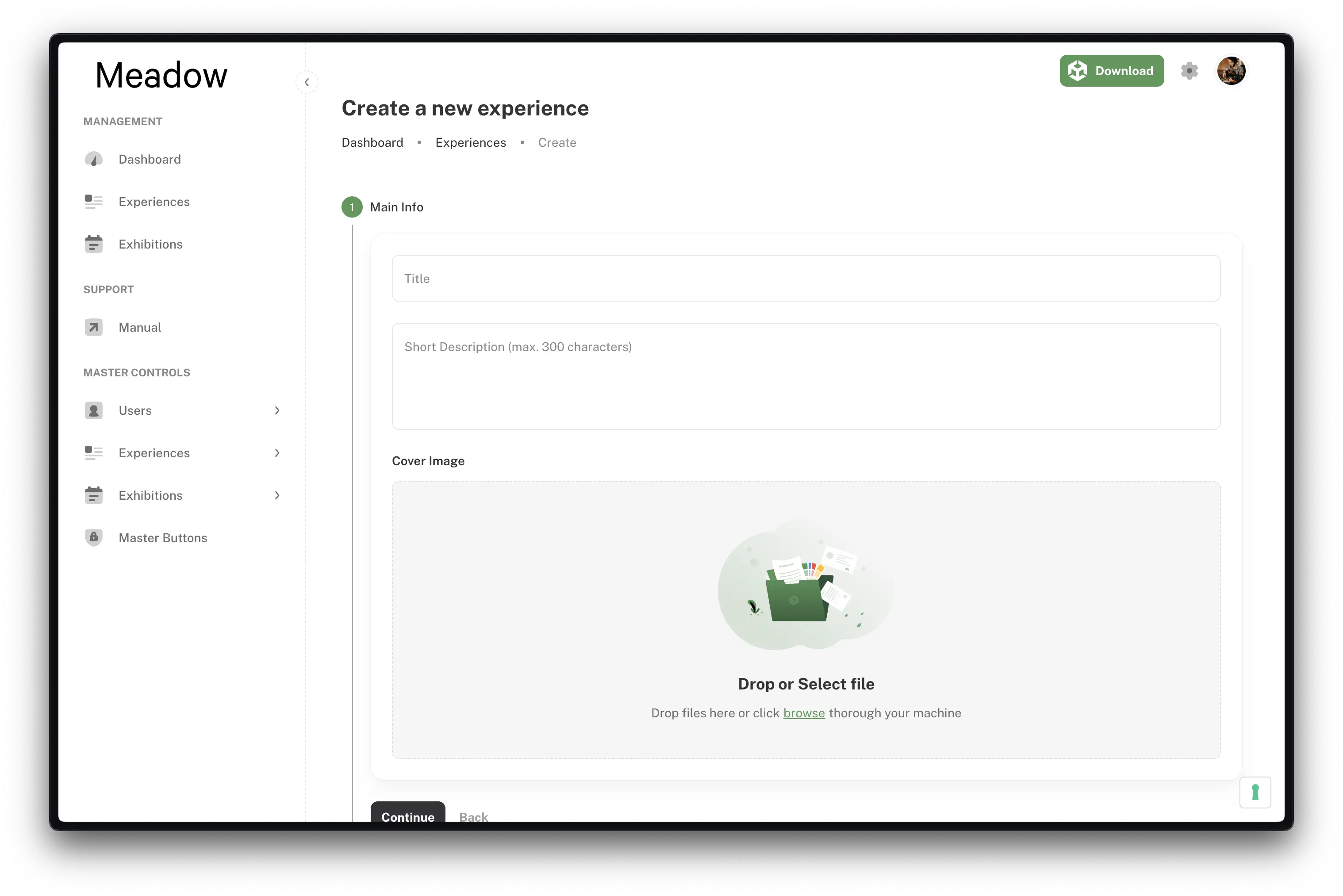
- Fill in the Title, add an image, and add a description. You don’t need to add anything apart from the title now, and can always edit these later.
- Skip past the Deploy section for now as we will handle this from Unity.
- In the “Distribution” section you can place your experience. You do not need to do this to test the experience, if you keep the toggle “Available anywhere” the experience can be opened at any location. If you want to place it somewhere and make it show up on the in-app map, search for a location and double click anywhere on the map.
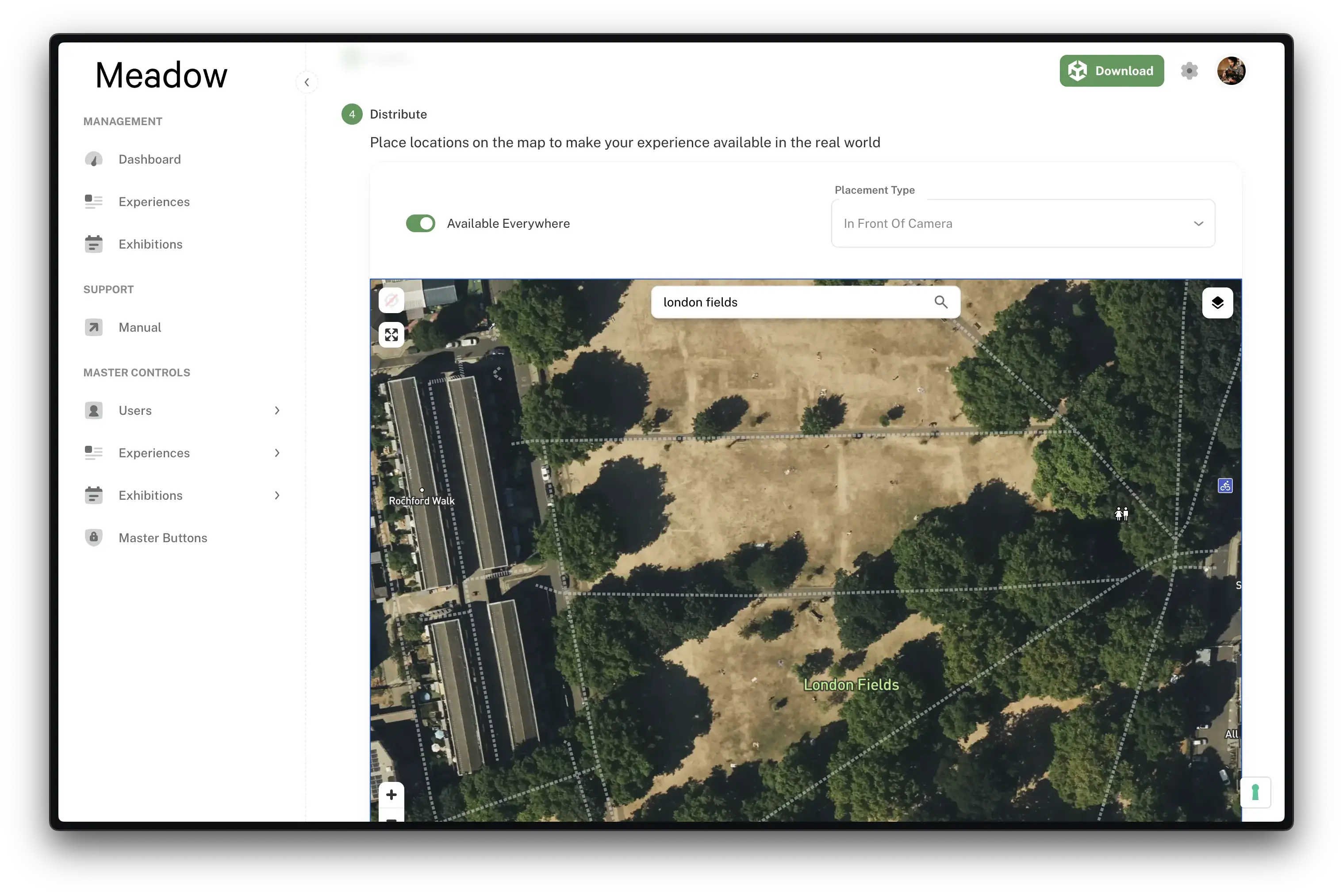
- Placement Type decides how your experience will be positioned in the world.
- In Front Of Camera: The experience will be placed in front of the camera when the user opens it, at the
Placement Distancespecified in the Experience component. - Geospatial: The experience will be placed at a physical location in the world using Google’s Visual Positioning System, which uses Google Streetview to place it. Accuracy varies depending on location, but can be below 1 meter in ideal conditions.
- In Front Of Camera: The experience will be placed in front of the camera when the user opens it, at the
- Save the experience as a draft for now. You can publish it later.
Upload your experience using Meadow Studio
Now it’s time to upload your experience to Meadow.
Login to Meadow Studio
- Find the Meadow tab in Unity and open the Meadow Studio window.
- Log in with the details you used when first making your Meadow account.
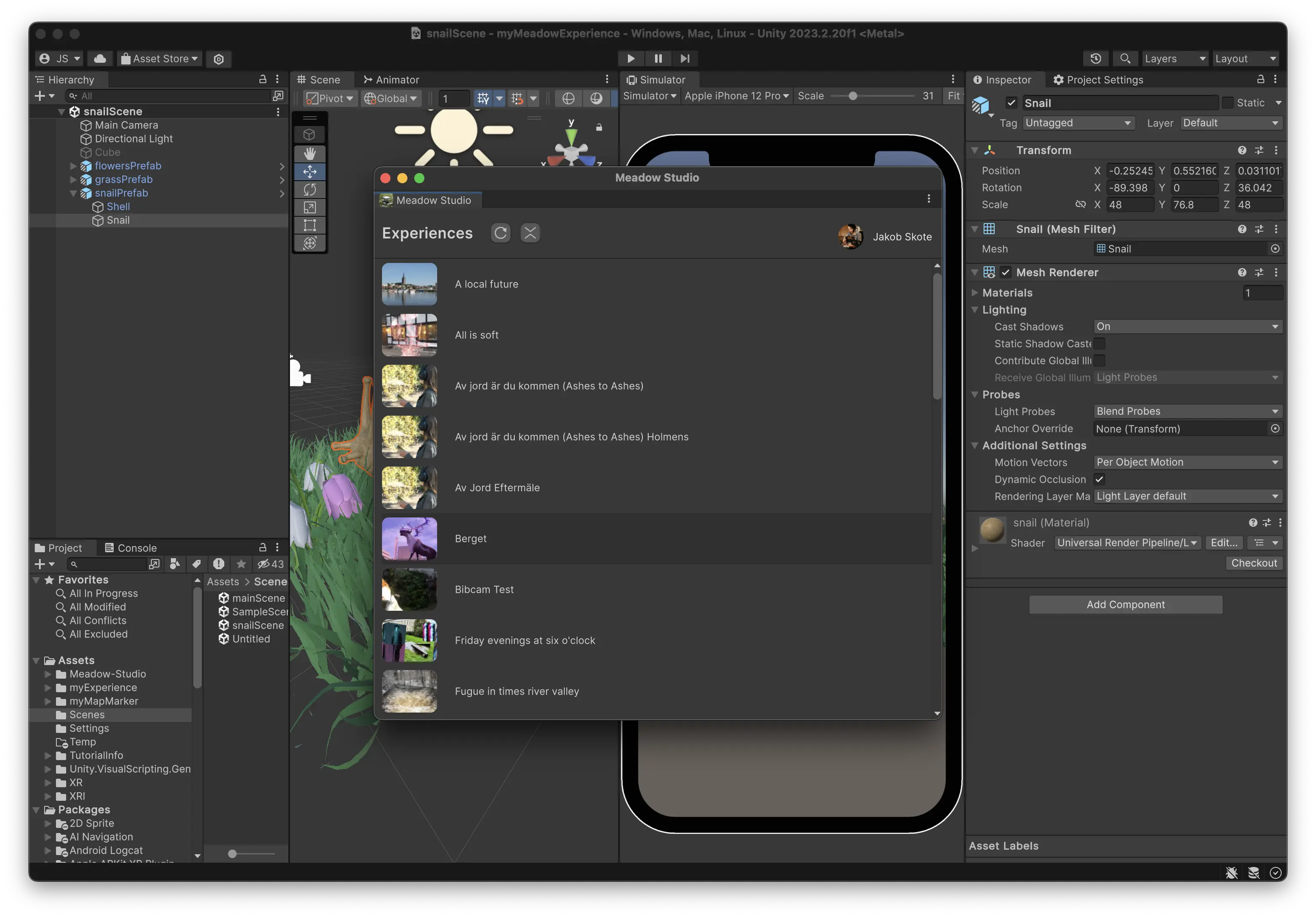
- Here you will see all your experiences listed. Click refresh if something is not up to date.
Upload to Meadow
- Open the experience you would like to upload to.
- In the drop down
Asset Bundle, select the bundle you would like to upload. This is the bundle that you assigned to your project folder. See instructions here. - Specify if this is the Experience Bundle or the Map Marker Bundle. See Map Marker instructions here.
- Select the platforms for which you would like to upload the experience.
- Click Upload to Meadow.
- The process takes a while the first time it’s done as Unity has some caching to do. Subsequent uploads will be faster.
- If you have more updates to publish later on, simply repeat this process to update again.
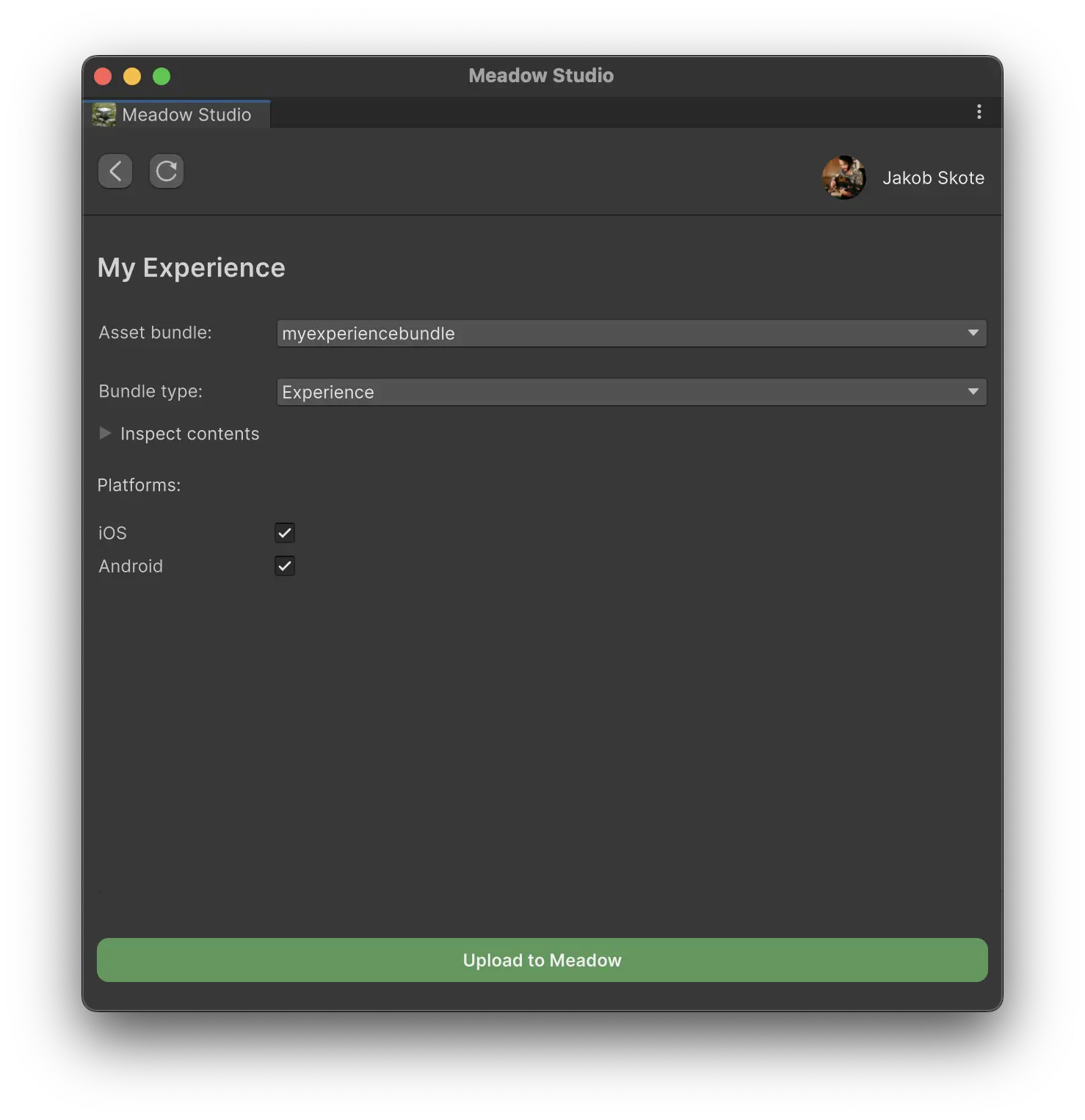
Important: Make sure to choose the correct asset bundle and bundle type.
Example: choose Asset bundle
myexperienceand Bundle typeExperienceto upload the experience for the asset bundlemyexperienceto Meadow.
Test your experience in the Meadow app
You are now ready to test your experience in the Meadow app!
- Open the app on your device.
- Press the profile icon in the bottom right corner.
- Log into your Meadow account.
Note: There is currently a bug with pasting in your password, so you need to type it in manually. We apologize for the inconvenience, and are working on a fix for this.
- You will now see the experience listed on your profile.
- Press the experience to open it.
- Press “Enter Experience” to open it in AR.
Add cocreators to your experience
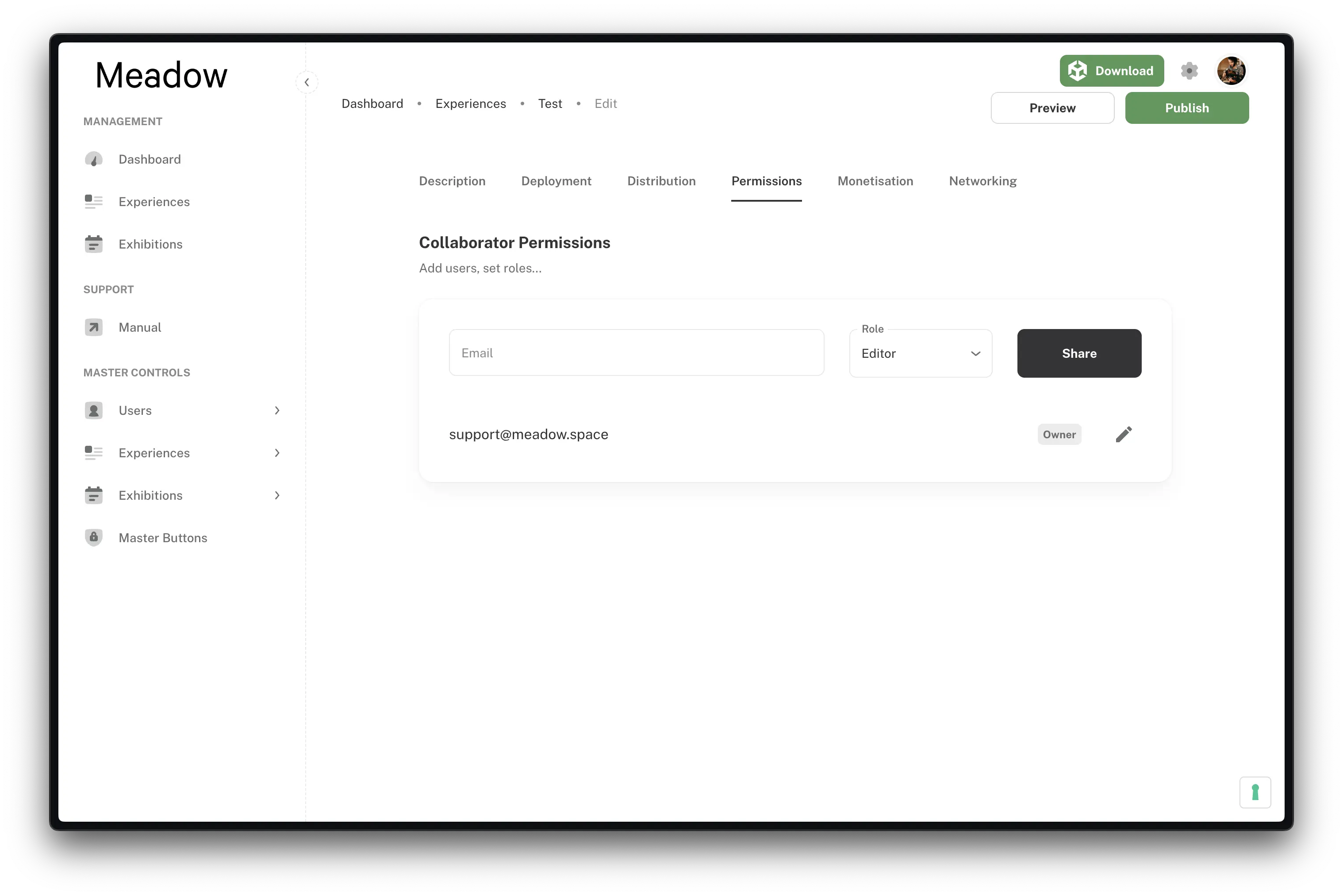
You can add collaborators to your experience to work on it together. This is great to be able to share it with team members or clients.
- When editing an experience in the web app, go to the tab “Permissions.”
- Add the email address of the people you would like to invite to be able to edit the experience. There are two roles for collaborators:
- Viewer: Viewers can see the experience but not edit or upload. They need to log in to their Meadow account in the app.
- Editor: Editors can upload asset bundles, change texts, images, and place the experience.
Publish
So, you have tested your experience and it works great! Now it’s time to publish it to the world.
- Go to the experience in the web app.
- On the top right, click Publish.
- For an experience to be published it needs to have an image and a description.
Note: It is currently not possible to unpublish an experience. If you need to unpublish, contact support.