Before uploading anything, you can try your experience directly in Unity. This is the fastest way to check that things look and sound the way you want.
Play your scene
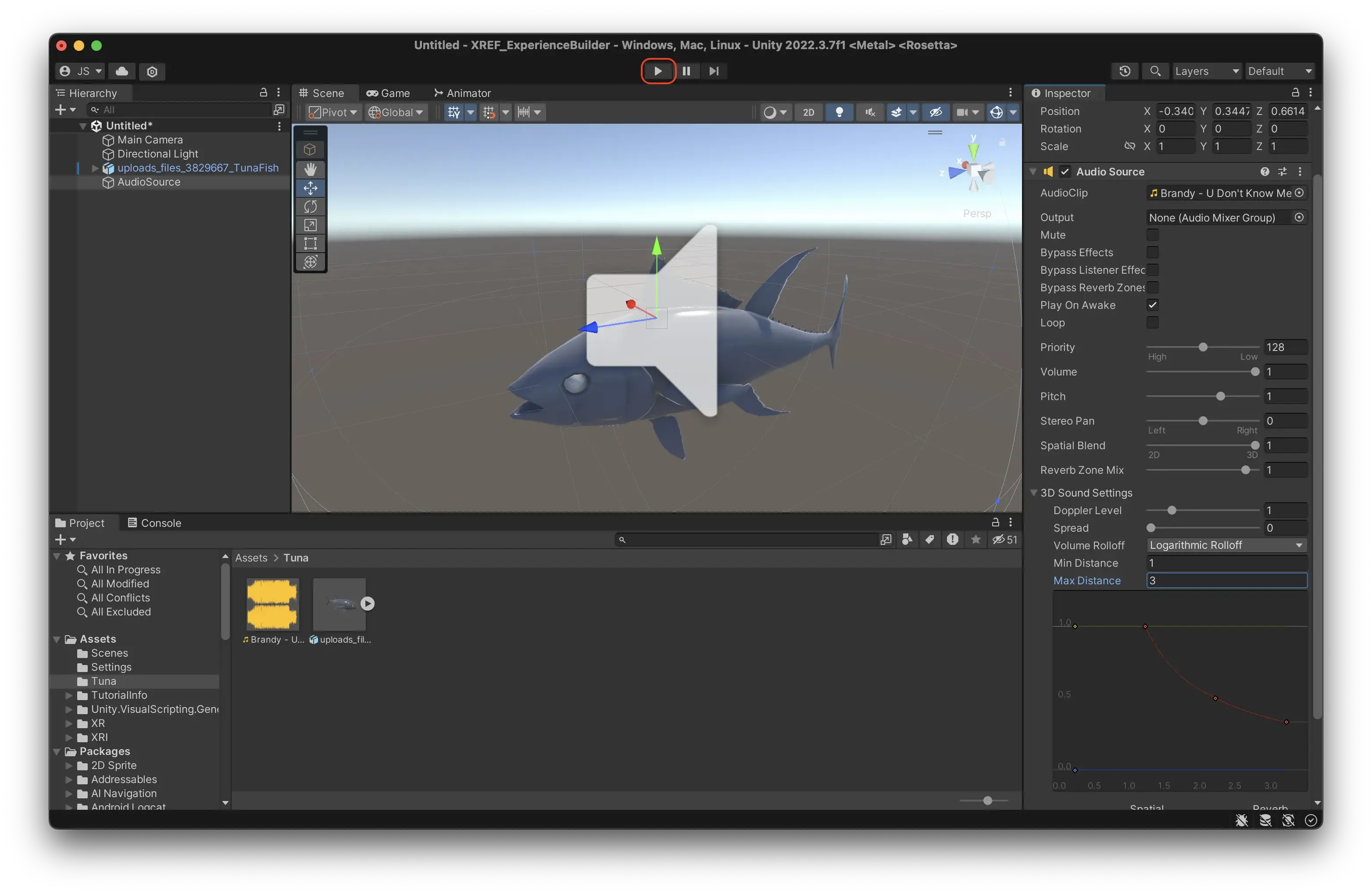
Press the big Play button at the top of the editor. Unity loads for a moment, then switches to the Game view and shows the scene through the Main Camera.
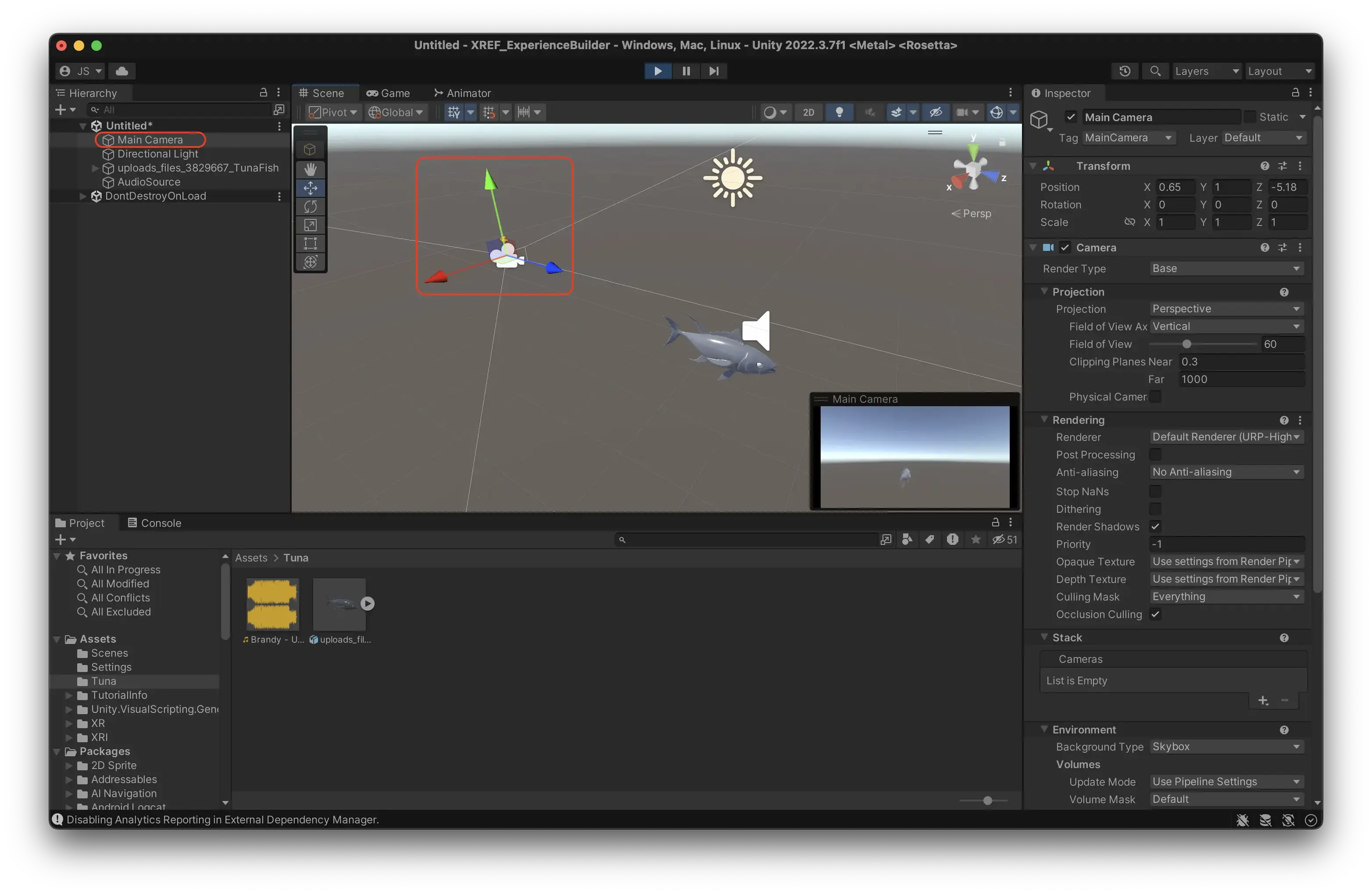
Switch back to the Scene tab, so you can move around freely while the scene is playing.
Select the Main Camera in the Hierarchy and move it with the arrows. You should hear the forest get louder as the camera comes closer to the fox, and quieter as it moves away.
Don't forget to stop! Press Play again to stop. While the scene is playing, nothing you change is saved. It is very easy to forget this, we do it all the time.
What Play mode can and can’t show
Play mode is great for checking sound, scale, animations and Visual Scripting. It does not run AR, so things like placement, plane detection and touch are best tested on your phone, in the Meadow app. You will do that after uploading.
Bring it to life
Our fox is still standing very still. On the Animations page you will make it sit down, look around and stand up again, using the animations that came with the model.
Before uploading anything, you can try your experience directly in Unity. This is the fastest way to check that things look and sound the way you want.
Play your scene
Press the big Play button at the top of the editor. Unity loads for a moment, then switches to the Game view and shows the scene through the Main Camera.
Switch back to the Scene tab, so you can move around freely while the scene is playing.
Select the Main Camera in the Hierarchy and move it with the arrows. You should hear the forest get louder as the camera comes closer to the fox, and quieter as it moves away.
Don't forget to stop! Press Play again to stop. While the scene is playing, nothing you change is saved. It is very easy to forget this, we do it all the time.
What Play mode can and can’t show
Play mode is great for checking sound, scale, animations and Visual Scripting. It does not run AR, so things like placement, plane detection and touch are best tested on your phone, in the Meadow app. You will do that after uploading.
Bring it to life
Our fox is still standing very still. On the Animations page you will make it sit down, look around and stand up again, using the animations that came with the model.